

- Joined
- Nov 29, 2022
- Messages
- 1,340
- Reaction score
- 121
Apple Intelligence is still universally considered underwhelming, but what I like about Apple's approach is that the company is not trying to shove it down your throat. If you do not want it, you can turn everything off with a single toggle. Sadly, that is not possible with Microsoft. Even though many features and experiences are opt-in, you cannot get rid of everything, and AI-powered features often feel unnecessary or in your face. Given that Microsoft is not willing to make its operating system less annoying in this regard, enthusiasts are taking the matter into their own hands. A new script published on GitHub promises to remove all the AI stuff in Windows 11 with a single click. All you have to do is run a command and then tick everything that you want to see gone. Of course, using apps like this is always a risky affair, so back up important data before proceeding.
"Remove Windows AI" can do the following:
"Remove Windows AI" can do the following:
- Disable Registry Keys
- Disable Copilot
- Disable Recall
- Disable Input Insights and typing data harvesting
- Copilot in Edge
- Image Creator in Paint
- Remove AI Fabric Service
- Disable AI Actions
- Disable AI in Paint
- Disable Voice Access
- Disable AI Voice Effects
- Disable AI in Settings Search
- Prevent Reinstallation of AI Packages
- Installs a custom Windows Update package to prevent the reinstall of AI packages in the CBS (Component-Based Servicing) store.
- Disable Copilot policies
- Disables policies related to Copilot and Recall in IntegratedServicesRegionPolicySet.json.
- Remove AI Appx Packages
- Removes all AI appx packages, including Nonremovable packages and WindowsWorkload.
- Remove Recall Optional Feature
- Remove AI Packages in CBS
- This will remove hidden and locked AI packages in the CBS (Component-Based Servicing) store.
- Remove AI Files
- This will do a full system cleanup, removing all remaining AI installers, registry keys, and package files.
- Hide AI Components
- This will hide the settings page for AI Components.
- Disable Rewrite AI Feature in Notepad
- Remove Recall Tasks
- Forcefully removes all instances of Recall's scheduled tasks.
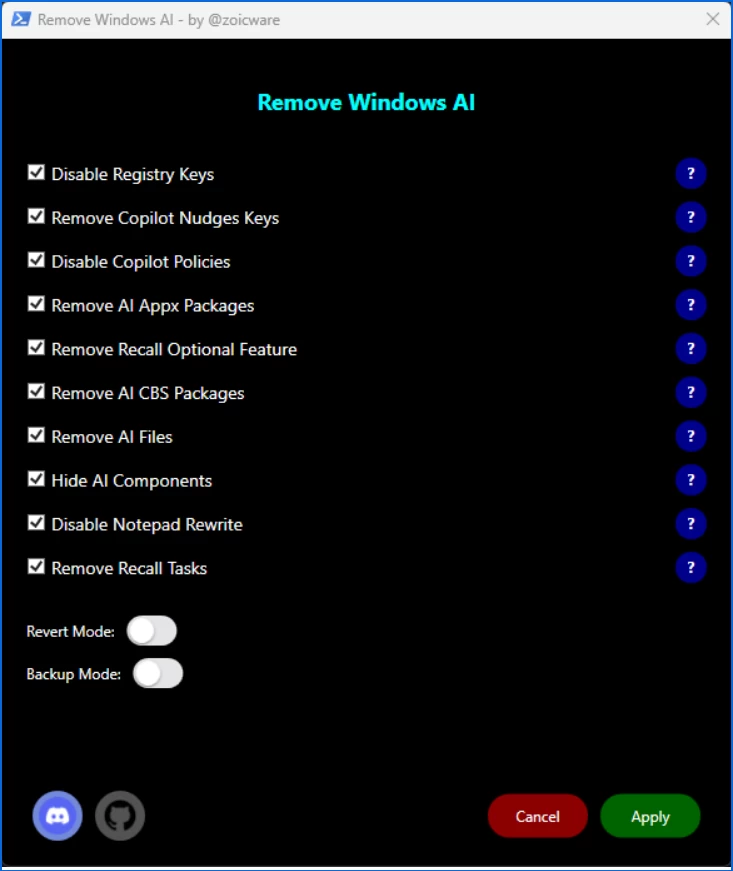
Debloating Windows 11 with third-party tools is always a cat-and-mouse game where users remove something, and Microsoft then finds another way to undo the damage. Therefore, be ready to perform "cleanup" maintenance if you decide to go this route by running it again if Microsoft restores some or all via an update (there is also a toggle to revert changes). While the approach is not perfect (besides being a chore, you have to trust the maker of the app of choice), it is still a good option for those who cannot leave Windows, regardless of how much Microsoft tries to ruin it with buggy updates and bloat.