

- Joined
- Nov 29, 2022
- Messages
- 1,347
- Reaction score
- 121
Sharp-eyed Windows Insiders recently discovered that Microsoft is preparing a redesigned Run dialog for Windows 11 in another attempt to modernize the operating system. Microsoft has not announced anything yet, but if you are curious to give the new UI a try, you can now enable it in the latest Windows 11 25H2 preview builds that are available in the Dev and Beta Channels.
The redesigned Run dialog is available in recent Windows 11 preview builds, but getting it to work requires a little tinkering with third-party tools. If you are not comfortable doing that, the best course of action is to wait for the official rollout (at least in the Insider program). However, that is not the spirit of running Windows 11 preview builds, so here is how to enable the new Run dialog:
The redesigned Run dialog is available in recent Windows 11 preview builds, but getting it to work requires a little tinkering with third-party tools. If you are not comfortable doing that, the best course of action is to wait for the official rollout (at least in the Insider program). However, that is not the spirit of running Windows 11 preview builds, so here is how to enable the new Run dialog:
- Update to the latest Windows 11 build from the Dev or Beta Channel. There is a lot of interesting stuff, so you will have plenty of things to test, not just the new Run dialog.
- Launch Command Prompt as Administrator by pressing Win + R, typing cmd and pressing Ctrl + Enter.
- Go to the folder with the extracted ViVe files using the CD command. For example, CD C:\vive
- Type vivetool /enable /id:57156807,57259990,58527096,58381341 and press Enter.
- Restart your computer.
- You are not done yet. The new Run dialog is disabled by default, as Microsoft currently keeps the old one on standby. Given that Microsoft has not announced the new Run yet, we can only speculate why we need two Run dialogs. During my testing, I noticed that the new UI is quite unstable (which is probably why we do not have it officially rolling out), so you may want to go back to the old one at some point.
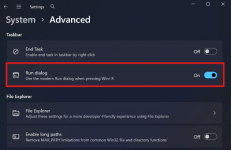
- Go to Settings > System > Advanced and toggle on the "Run dialog" option.
Now you can press Win + R and enjoy (or not) the redesigned Run dialog.